mb5370
This document walks you through the process of setting up authentication with github using ssh keys. This is an alternative to the PAT method.
1. Generate an SSH key
This is important. You need to do this using the cloud rstudio through your web browser.
Open a Terminal window in RStudio ( Tools -> Terminal -> New Terminal )
Within your terminal window type the following command.
ssh-keygen
It will ask for a passphrase. Just hit enter without entering a passphrase (ie leave it blank). It’s OK this is still very secure and will keep things simple.
Accept all the other defaults simply by hitting the enter key multiple times. If everything succeeds you should see a message like this
The key's randomart image is:
+--[ED25519 256]--+
|      o .  .o+=o.|
|     + o    o o* |
|    . o . ..o.+o=|
|     o . o . +.*=|
|    . . S     ..@|
|     .       .o=+|
|          . +.*.E|
|           +.B = |
|            ..=..|
+----[SHA256]-----+
Now that you have an ssh key you will need to access the public part of this key for the next step. Enter the following command in your terminal window
cat ~/.ssh/id_ed25519.pub
Copy the entire text starting from ssh-ed25519 . You will need this in the next step.
2. Add your ssh public key to your github account
By providing your public key to github you can prove that you are who you say you are. Note that this relies on the fact that you have access to both the public key and it’s corresponding private key. You can share the public component with anyone but only you should have access to the private key. Github will use your public key to generate a challenge code that only someone with the corresponding private key could decode (this is you). Use the following steps to add your public key to github.
- Login to your github account
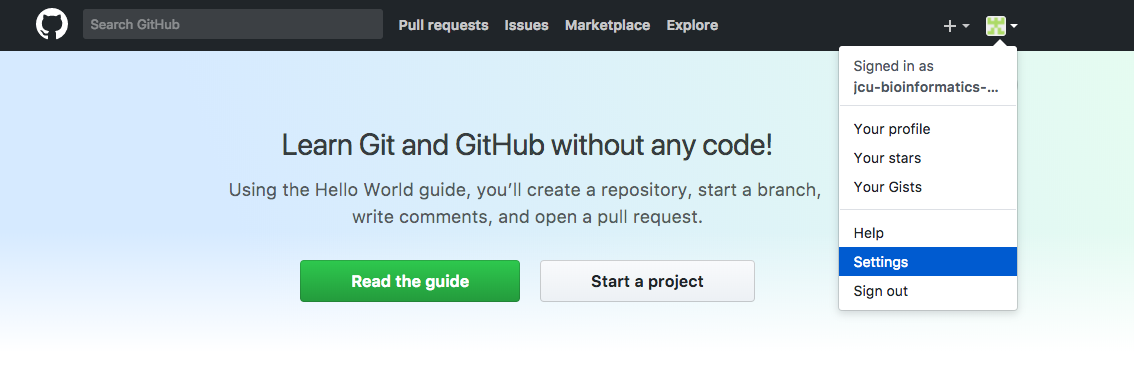
- Click the profile icon in the top left corner and then select “Settings” from the menu
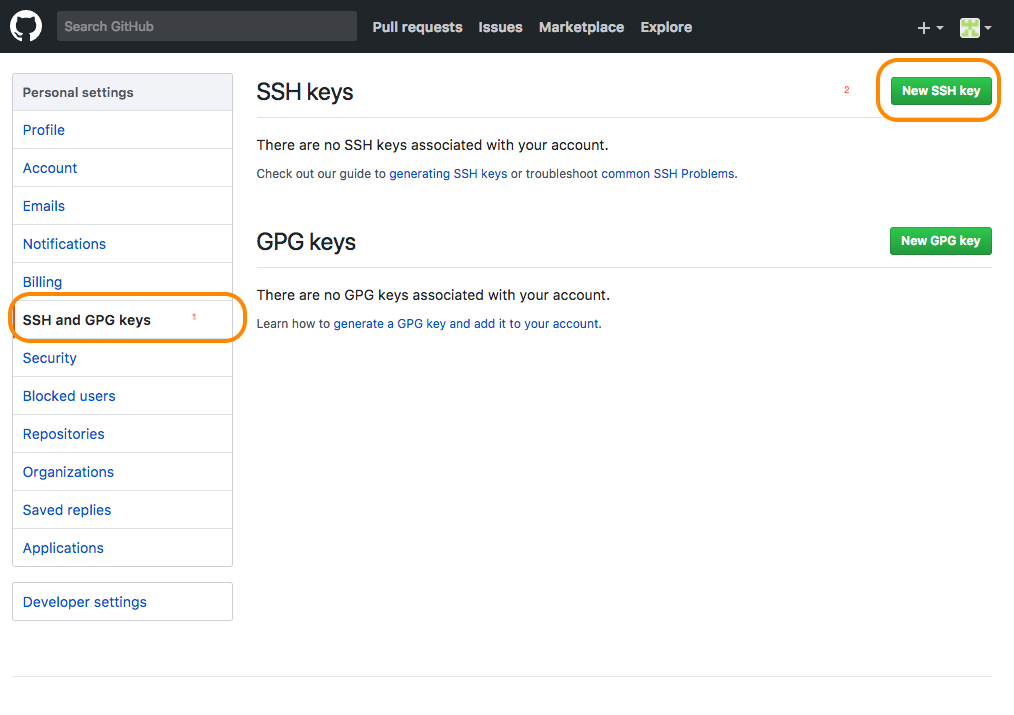
- Select “SSH and GPG Keys”. Then click the “New SSH key” button
- Copy your entire public key
- Paste the entire key into the “Key” field on github.
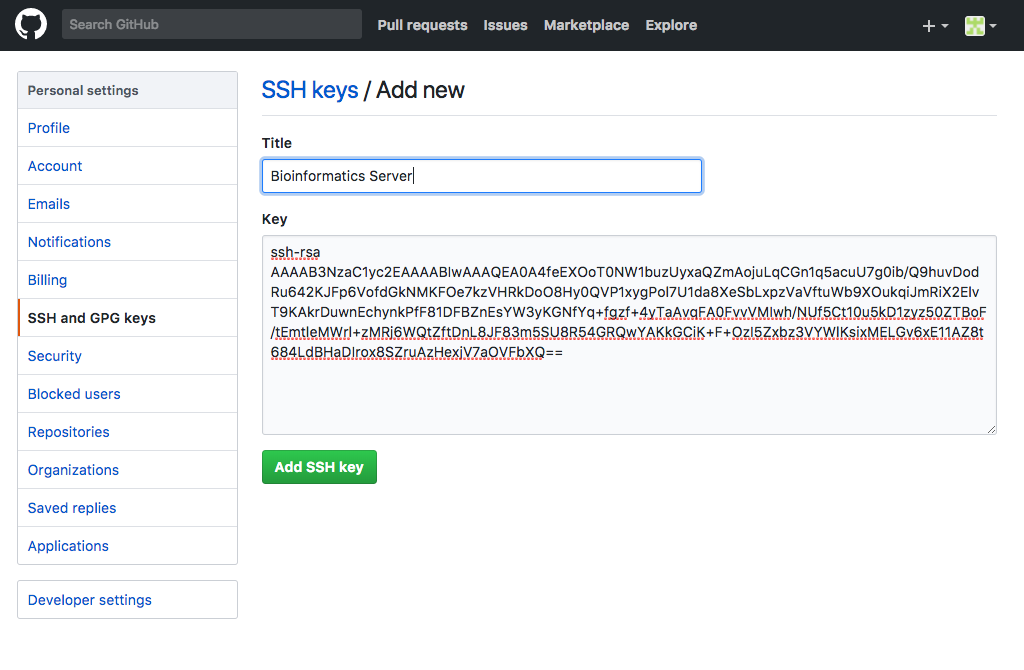
- Finally click “Add SSH key”