mb5370
Github Setup for the Marine Genomics Module
For the marine genomics module we will be working on the server version of rstudio. This is just like the rstudio you might have installed on your own computer but it runs on a server in the cloud and you access it through your web browser.
The main reason we do this is so that you can access a heap of software on the server that would otherwise be difficult to install on your own computer. All the software we use is free but it just takes time to install and would be impractical for us to do for everyone in a classroom environment. The other advantage of using the cloud server is that the physical hardware of that machine is more than your typical laptop. For example the 2026 server has 64 CPUs and 128Gb of RAM. This is shared among the whole class but it means we can run some large analyses like genome assembly that would take a long time or might not run at all on a laptop.
When you setup your own computer to work with github in Module 1 you would have setup authentication between rstudio and github. If you don’t remember checkout the section on Github in this document
When working on the cloud rstudio you’ll need to do this again. This sets up authentication between your cloud rstudio and github. If you use this method you should always choose HTTPS URLs when cloning repositories.
If you have trouble setting up authentication using HTTPS, alternative is using SSH keys
1. Create a repository for the Marine Genomics module
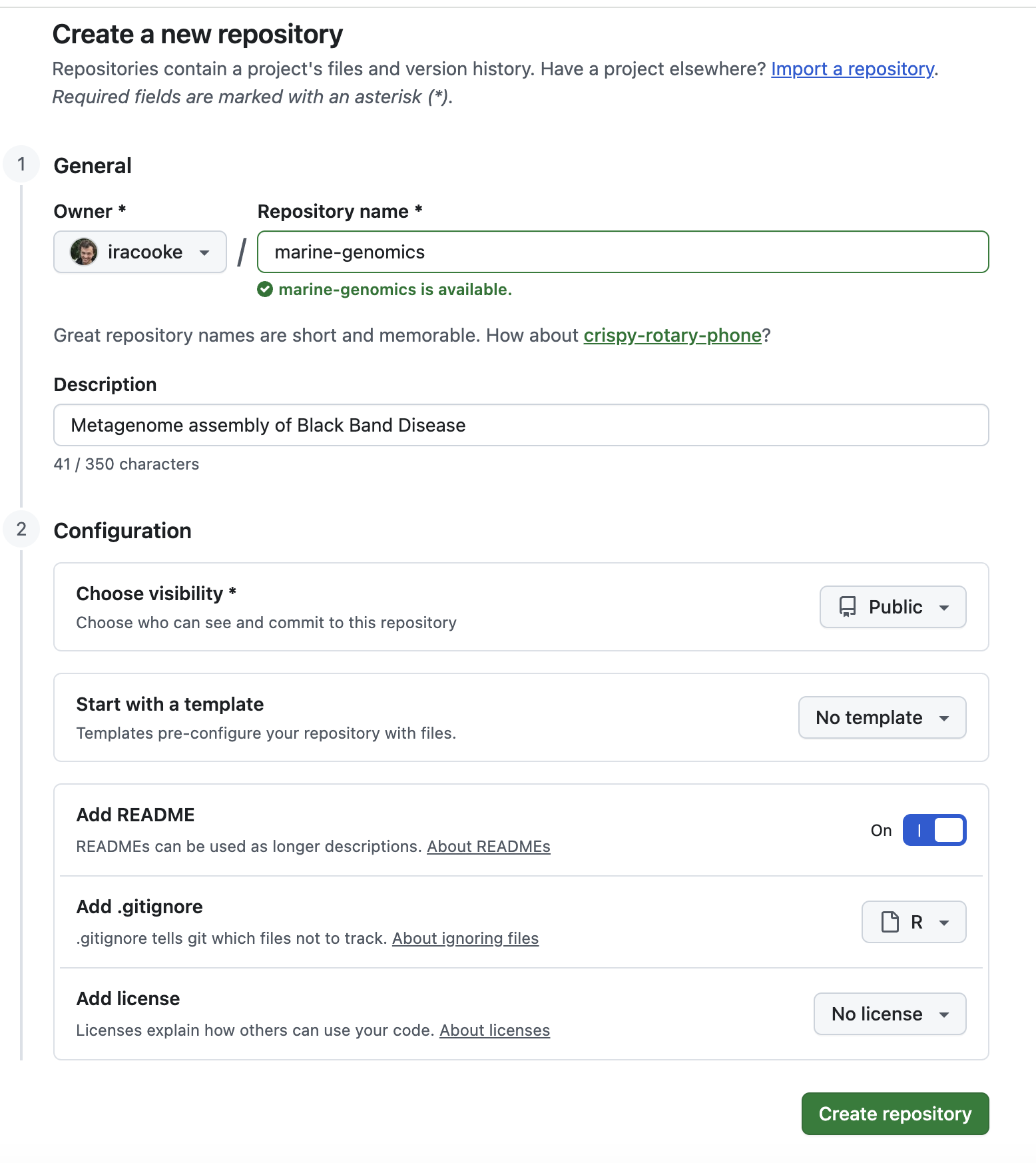
Just as you have done for other modules in your course you should create a new github repository for the Marine Genomics module. You should use this to document your work in the module and it will form part of your assessment for the subject.
During repository creation I recommend adding a README and a .gitignore
2. Clone the repository
Now you are ready to create a working copy of the repository that you created in step 4.
- Login to the class RStudio cloud server (you’re probably already logged in).
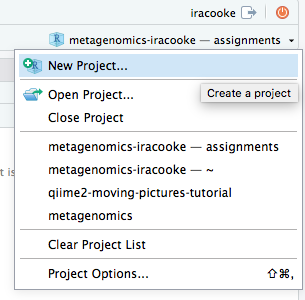
- Select New Project from the project menu
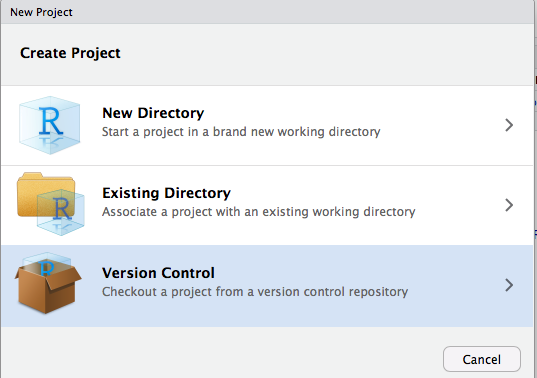
- Choose “Version Control” as the new project type
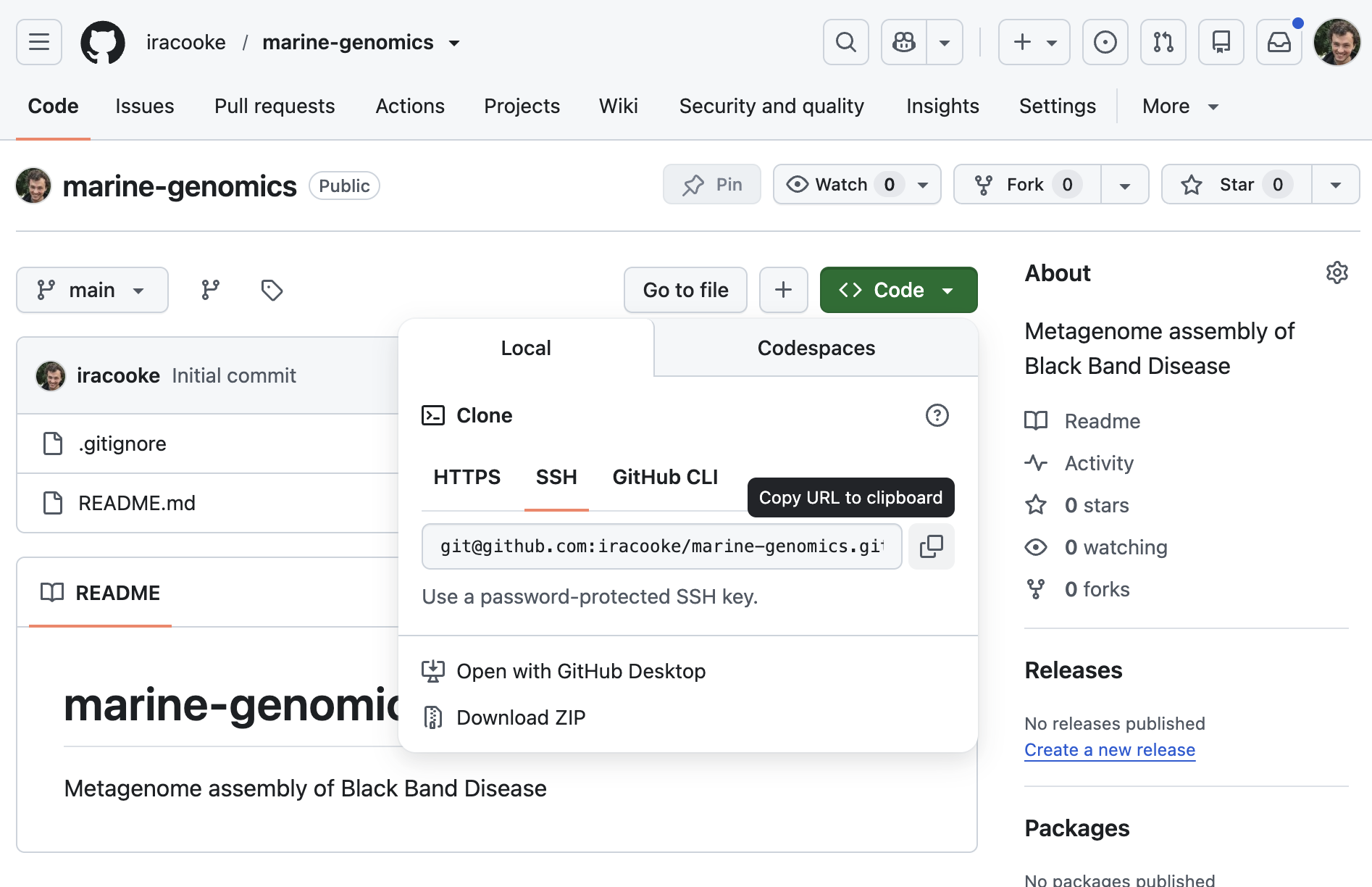
- Enter your repository URL and project directory details. You can easily find your repository URL by going to your repository page on github and clicking the “Clone or download” button.
Note: If you are using the PAT authentication method then select https for the authentication method. If using ssh then choose ssh. URLs for ssh start with git and for https they start with https.
After entering your repository details they should look something like this
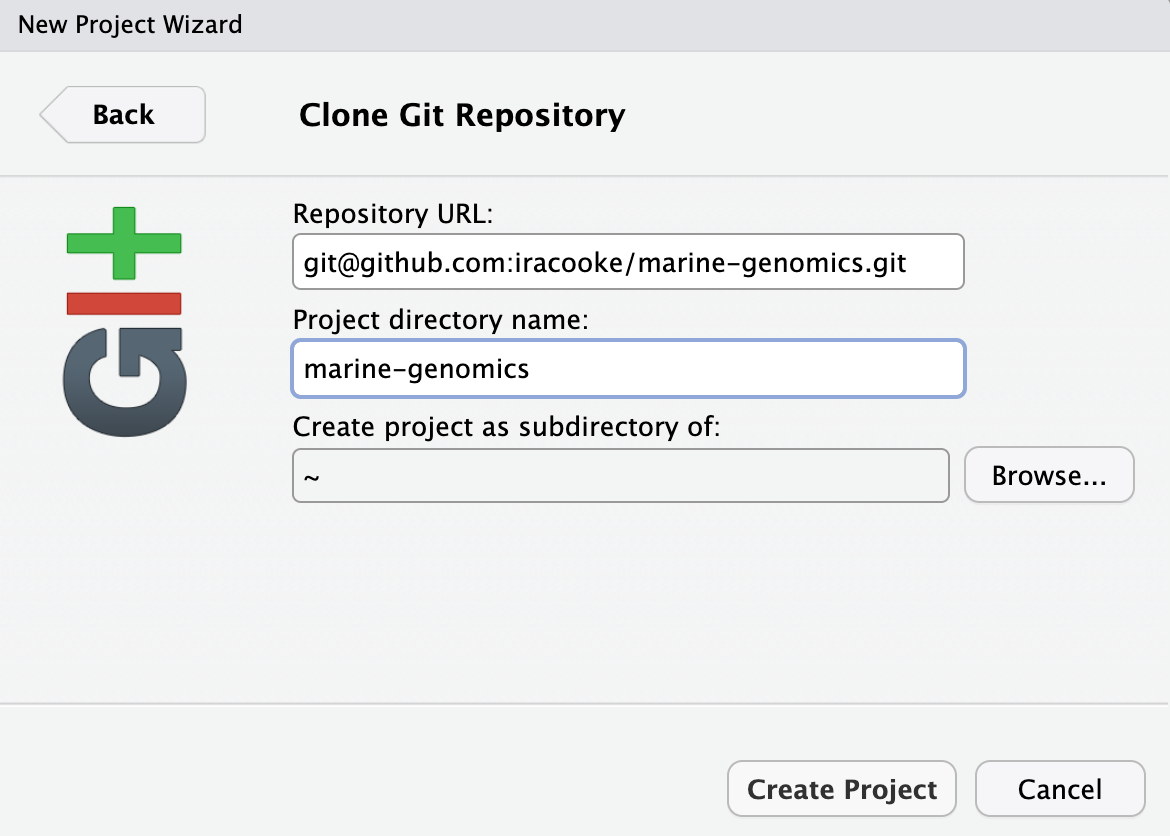
Note that in this example the directory was created as a subdirectory of ~. We recommend you stick with this setting.
Once you have entered all the details click “Create Project”. When you do this rstudio will attempt to download a copy of your repository from github. The first time this happens it might put up a window asking for your permission. If you see this type “yes” into the relevant window.
3. Add files and data to your repository
Use Markdown syntax to add information to your README.md. When people open your repository the first thing they will see is a rendered version of this README. My recommended practice is to use this README as a kind of introduction and table of contents for the rest of the repository. You might want a little text to explain what the repository is for and then some links which lead to individual components of the analysis. Alternatively, if the overall content of the repository isn’t too large you could potentially include it all in the README.
There are four workshops in Marine Genomics but I recommend you only include work from workshop 4 in the repository you upload to github. Workshops 1-3 are preparatory material for your learning but aren’t directly relevant to the task of assembling and interpreting the metagenome of black band disease (BBD). Workshop 4 focusses specifically on BBD. If you only include this in your repository it will be more coherent. Hopefully you will also be able to draw on your knowledge from workshops 1-3 when annotating the steps involved in workshop 4.
4. Submit your work
First an important warning.
>WARNING! Never add large files to git! And definitely don't try to push large files to github
In the marine genomics module you will be working with large data files. Things like fastq files or even your genome assembly results. Those are large (multiple mb). Don’t add these to git or github. If you do it can be quite tricky to remove them and they will (a) slow things down alot and (b) potentially make github reject your commits.
The best approach is to be very selective in what you add to git (see below). In general the only files you should add are;
- Files you wrote like Rmarkdown files or and rendered outputs of the RMarkdown rendering process (including images and small text files)
- Image files you want to display in your README or rendered RMarkdown
- Very small text files with important results. Eg you might want to include summary results from
checkmorgtdbtk. Nothing more than 1Mb, preferably smaller.
As you work on your assignment you should regularly commit your changes to git and then push those changes to github. You can do all these things using the “git” menu in RStudio
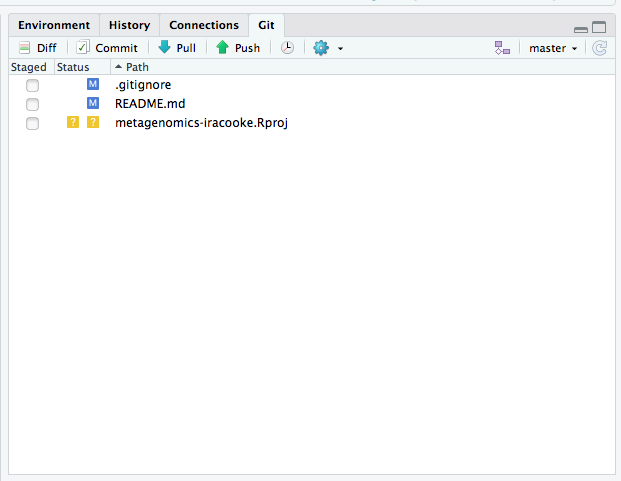
Before you can make commits you will need to tell git who you are though. You do this from the Terminal by running the following commands
git config --global user.email "you@example.com"
git config --global user.name "Your Name"
Replace “you@example.com” with the email address you used to sign up to github (probably your jcu address). Replace “Your Name” with your full name.
Beyond this subject
A portfolio of high quality software is a valuable asset when looking for a job. Github and other code hosting websites provide opportunities for you to build such a portfolio. For example if you develop something that others will find useful you should consider publishing it on github. If you are looking for something to work on, consider contributing to an open source project. If your contribution is accepted it will show up in your profile and demonstrate to potential employers that you have the ability to collaborate and produce high quality code.
Explore some of the freebies available as part of the github student pack. Most useful is the unlimited private repositories from github