Workshop 1: Introduction to the Command Line
Over the course of the next four workshops we will be working on real genomic data, assembling the genomes of bacteria that cause coral disease. In this workshop we will mostly be getting familiar with the computer systems we need for the remaining workshops.
Your main goal for workshop 1 should be to get familiar with the online rstudio that we will be using (its mostly the same as desktop rstudio) and start to build your familiarity with the unix command line.
Preliminaries
How to read this tutorial
Command-line examples that you are meant to type into a terminal window, and the results of those examples, will be shown in a shaded code block, e.g.
Sometimes the accompanying text will include a reference to a Unix command. Any such text will also be in a constant-width, boxed font. E.g.
Type the
lscommand.
From time to time this documentation will contain web links to pages that will help you find out more about certain Unix commands. Usually, the first mention of a command or function will be a hyperlink to Wikipedia. Important or critical points will be styled like so:
This is an important point!
So let’s dive in!
Introduction to Command-Line and RStudio
A cloud server has been provisioned for this workshop. It is a fairly powerful virtual machine but since it is needed for a few different teaching activities it will only be available to use during this workshop.
Each of you has a separate user account on this machine where you can add data, run commands and take notes. At the end of the workshop I will provide instructions on how to download this data for backup and use on other computers.
Logging in
Activity: Log in using the RStudio web interface.
Using a standards compliant web browser (Chrome, Firefox, Safari) navigate to rstudio.bioinformatics.guide. This should bring up a page asking for your username and password. You should have received these details in an email prior to the workshop.
After logging in you should see a full RStudio web interface which looks a bit like this;

The RStudio Web Interface
Rstudio is a full featured environment for all things R. This now encompasses a very wide range of activities from interactive data analysis (R;RMarkdown) to writing R packages and even creating interactive web pages with R (Shiny).
In this workshop we will work with a web based version of RStudio. It is almost identical to the RStudio that you can download and run locally on your own laptop or desktop machine (compatible with most operating systems). For the workshop we use it simply to avoid hassles of setting things up on many people’s computers.
Another very useful feature of RStudio is its ability to interact with
the underlying host operating system via the Terminal.
Activity: Open a Terminal Window
Click the Terminal tab in RStudio to open a command-line window. This
window is where you can type unix commands. The window below shows an
example. Try typing the ls command and pressing enter.

It is important to note the distinction between the Console window and
the Terminal window. Both windows allow you to type commands but
Console expects commands in R whereas Terminal expects unix
commands.
Later in the module we will make use of the R features of Rstudio
but for now we will just use it as a way to access the server and run
unix commands.
Basic unix commands
While learning about the multitude of unix command line tools is beyond the scope of this tutorial we will present a few useful commands to get you started.
The Unix operating system has been around since 1969. Back then there was no such thing as a graphical user interface. You typed everything. It may seem archaic to use a keyboard to issue commands today, but it’s much easier to automate keyboard tasks than mouse tasks. There are several variants of Unix (including Linux), though the differences do not matter much for most basic functions.
Unix is particularly suited to working with biological sequence files, even very large ones, and has several powerful (and flexible) commands that can process your data for you. The real strength of learning Unix is that most of these commands can be combined in an almost unlimited fashion. So if you can learn just five Unix commands, you will be able to do a lot more than just five things.
Unix file system
In unix files are stored in a tree structure.

Understanding where you are in this tree is critical when using the command line and usually the single biggest source of confusion for these workshops!
So where am I?
Let’s try our first command pwd (print working directory) which addressed this issue:
Activity: First unix command. Type
pwdin the terminal.
This shows your path within this tree. You’ll never be lost again!
What just happened? When we type pwd into the shell several things occur:
finds a program called pwd
runs that program
displays that program’s output, then
displays a new prompt to tell us that it’s ready for more commands.
Unix command format
pwd is a simple command that takes no arguments however in general unix commands have up to three components:
The command name
The flags or modifiers -> changes default behavior
The arguments -> input files, etc
Let’s illustrate using the ls command, a command that tells us what is present in our current directory.
Activity: Type
lsin the terminal.
This shows us any files and directories present in our location.
Now try adding the -l flag (long format)
Now we see more information for each file/directory.
Now try adding the -r flag (reverse sort)
Notice how we combined the flags?
That’s the concept behind flags but what about the argument?
By default ls displays information in the current directory but we can change this by passing in a different directory. Try it!
Instead of your current directory, the command queries the /usr directory.
That explains the concept of commands, flags and arguments
Get the workshop repository
A great way to organise your work when using RStudio is to use a
Project. This is essentially just a folder with a special .Rproj file
in it. When you open a project RStudio will set things up so that
you can easily work with files inside the project folder.
For workshops 1–3 you will work in a single project, made from a template repository on GitHub called mb5370-workshops. The template already contains an RMarkdown file for your notes from each workshop and every folder that the workshops use, so all of your work ends up in a predictable place.
Instead of cloning the template directly you will first make your own copy of it on GitHub, and then clone your copy into a new RStudio project. This gives you somewhere to push your notes so they are backed up. You’ll do the same thing again with a different template in workshop 4.
Activity: Make your own repository from the template
- Login to GitHub and go to the template at https://github.com/JCUBioinformatics/mb5370-workshops
- Click the “Use this template” button and choose “Create a new repository”
- Name your repository
mb5370-workshops. The instructions for workshops 1–3 assume you use this name. - Click “Create repository”
When GitHub has made your repository, click the green “Code” button on its page and copy the HTTPS URL. It should look like https://github.com/yourusername/mb5370-workshops.git, where yourusername is your GitHub username.
To push your work to GitHub later, the RStudio server needs to be able to log in to your GitHub account. If you haven’t set this up yet, follow the GitHub setup guide. If you made your repository private you’ll need to do this before the next step, because RStudio can’t clone a private repository until it can log in.
Activity: Create a project from your repository
Use the project menu at the top right of the RStudio interface and choose New Project

Choose Version Control as the project type, and then Git
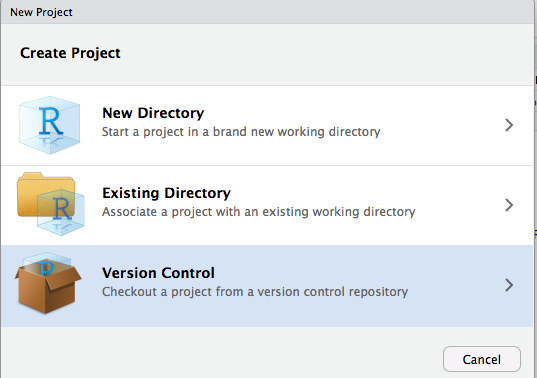
Fill in the details as follows and then click Create Project
| Field | Value |
|---|---|
| Repository URL | The URL of your repository, e.g. https://github.com/yourusername/mb5370-workshops.git
|
| Project directory name | mb5370-workshops |
| Create project as subdirectory of | ~ |
Make sure the URL is for your own repository and not the JCUBioinformatics template. RStudio will download your repository into a folder called mb5370-workshops inside your home directory (~) and open it as a project.
Throughout the genomics module you will often be instructed to use certain names for files and folders. Although you are free to choose your own names (in theory), in practice you are less likely to run into trouble if you stick to the names we provide. Commands and examples we give will assume your project is at ~/mb5370-workshops.
Activity: Explore the project’s files and folders
Open a new Terminal window (Tools -> Terminal -> New Terminal). A new Terminal starts at the top of your project. Check this with pwd. It should print something like /home/jcXXXX/mb5370-workshops, where jcXXXX is your JCU login ID.
Now use ls, pwd, and cd to explore the files and folders in your project. You should see
- an RMarkdown file for each of workshops 1–3:
01_command_line.Rmd,02_genome_assembly.Rmdand03_metagenome_assembly.Rmd - a folder for each part of the workshops, such as
command_line,redbeanandflye_genome - a
README.mdfile that explains which folder belongs to which workshop
Other useful unix commands
Create directory
If we want to make a new directory (e.g. to store some work related data), we can use the mkdir command (Tip: don’t use spaces when naming). You won’t need mkdir in the workshops because every folder they use is already in the workshop repositories, but it is a command you’ll use all the time in your own work.
Moving around
Today’s work goes in the command_line folder of your project. To change directories in Unix, we use the cd command:
Activity: Change directory
Here ~ is a shortcut for your home directory, so this command works wherever you are. Remember that you can always find out where you are using pwd:
It should print something like /home/jcXXXX/mb5370-workshops/command_line.
View file contents
Now copy the following to create a mock fasta (don’t worry about details for now).
cd ~/mb5370-workshops/command_line
echo $'>fasta_header\nMMGTSRCVILLFALLLWAANAAPPEIHTTRPNVPEEIKRPNSTEIETPAVKQLETPSIFL\nLTTLEVAEADVDSTLETMKDRNKKNSAKLSKIGNNMKSLLSVFSVFGGFLSLLSVVTTTS' > test.fasta
Now let’s have a look at the file using the command cat
What about if the file is huge and we only want to view the first few lines? Use the head command.
By default head will display the first 10 lines but the -2 only displays the first 2 lines
Search for specific content in files
Lastly we’ll show you powerful command grep (globally search a regular expression and print)
grep finds lines matching specific strings in files.
Activity: Learn about grep
For example if we want to find the fasta header (make sure to include the quotes in this command!).
If we want to find a specific amino acid sequence:
Grep has many useful flags. Use the man command to view some of the flags.
grep has roughly 50 flags!
Some of my favorites include:
-i -> case insensitive match
-n -> report line number of matches
-c -> count all files that contain the pattern
-w -> match whole words only
Let’s try adding the line number with the ‘-n’ flag
Now we see the line number included.
That should give you a taste of a few basic unix commands, hopefully you can pick the rest up as you go.
And finally….
Remember to check where you are before running commands!!!!
RMarkdown
When starting out in bioinformatics many people take notes in document
editing programs familiar to them such as Microsoft Word. While this can
sometimes work it is much better to take notes using a plain text
format. Programs like Word are terrible for writing computer code
because they will do unexpected things like capitalize words or convert
characters (eg convert a double dash -- into a longer single hyphen).
Markdown is a simple plain text format that is great for taking notes and writing larger documents that include computer code. RMarkdown is a variant of Markdown that is understood by RStudio and allows you to include code chunks that can be run to create images or perform analyses.
Activity: Open your notes for this workshop
Your project already has an RMarkdown file for taking notes in each workshop. Click on 01_command_line.Rmd in the Files pane to open it.
Naming conventions are a very important organisational tool. I like to name all my files using a numeric prefix within projects. This provides a sequential order to things that I find is often helpful when tracking down what I have done.
Activity: Note down some commands
So far today we have used the ls, cd, pwd,cat,head,grep and man commands. Make
some notes about these in 01_command_line.Rmd.
Put your name in the author field at the top, then replace the placeholder text under each heading with your own notes. Copy the commands you run into bash chunks like the example near the top of the file. When you knit the document these chunks are shown but not run again. This will matter in later workshops, where some commands take hours to run.
For full details on how to author RMarkdown documents refer to the cheat sheet.
When you have made some edits click the Knit button to see what your
document looks like as an html page
Moving files to/from the remote server
At some point you are likely to want to either copy your files from the rstudio server down to your laptop or vice versa. This can be done using rstudio as follows;
You can export selected files which will zip them up and download them
to your computer

In the other direction you can use the Upload button to upload files
from your laptop
Sequence File Formats
We created a fasta file in the previous section but let’s look closer at fasta and fastq formats.
These are the two common formats for storing sequence information. Let’s examine them and see how they differ?

Now let’s consider fasta
The fasta format consists of 1 or more entries each of which consists of a header and a sequence

The fastq format is designed for storing sequencing data along with quality scores.

It is a standard format used for many types of sequencing including Illumina short reads and longer reads produced by Nanopore or PacBio sequencing. See this wikipedia page for a more detailed description of the fastq format.
Each read occupies 4 lines in a fastq file. The lines are as follows;
- Starts with
@and contains a unique identifier for the sequence - Is the sequence itself
- Starts with
+and almost always nothing else - Contains quality scores. These are encoded using ASCII characters with one character per base.
The full list of quality score letters from 0-93 is
!"#$%&'()*+,-./0123456789:;<=>?@ABCDEFGHIJKLMNOPQRSTUVWXYZ[\]^_`abcdefghijklmnopqrstuvwxyz{|}~End of Preliminaries.
That takes you through the basics of Rstudio, unix and sequence formats.
If you want more practice with command-line basics I recommend you run through the 30 minute tutorial at terminal tutor.
Now move on to workshop 2, genome assembly